
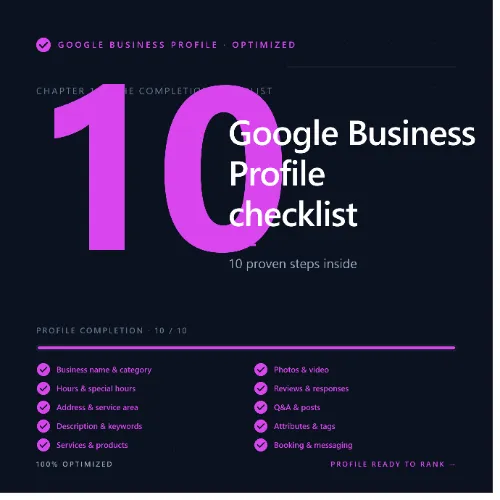
Google Business Profile optimization checklist Key Takeaways
A well-optimized Google Business Profile is the single most impactful local SEO asset for brick-and-mortar businesses.
- Complete each step of the Google Business Profile optimization checklist to boost local visibility and attract nearby customers.
- Focus on accuracy, completeness, and regular engagement: Google rewards profiles that are fully filled out and actively managed.
- Track your progress using GBP insights and third-party local SEO tools to refine your strategy over time.
Why Every Local Business Needs This Google Business Profile Optimization Checklist
If you own a local business, your Google Business Profile is often the first impression potential customers have of you. It appears in local pack results, Google Maps, and knowledge panels. Yet many business owners set up their profile once and forget about it. That is a missed opportunity. For a related guide, see 7 Proven Ways to Rank in Google Maps – Expert Guide.
By following this Google Business Profile optimization checklist, you ensure your listing is fully optimized to appear in relevant searches, display accurate information, and convert searchers into paying customers. The steps below are ordered from foundational to advanced, so you can work through them systematically.
Step 1: Claim and Verify Your Business Profile
Before you can optimize anything, you need to own your listing. Go to Google Business Profile and claim your business. If you already have an unclaimed listing, request ownership.
Google will send a verification code via postcard to your business address. Enter that code in your dashboard. Verification proves you are the authorized owner and unlocks all editing features.
Step 2: Ensure NAP Consistency Across the Web
Your business name, address, and phone number (NAP) must be identical everywhere online—on your website, social media, directory listings, and your GBP. Even minor inconsistencies (e.g., “St.” vs. “Street”) confuse Google and hurt your local ranking. For a related guide, see 10 Common SEO Mistakes Small Businesses Must Avoid in 2026.
Use tools like Moz Local or BrightLocal to audit NAP consistency across the web. Fix any mismatches you find.
Step 3: Select the Most Accurate Primary Category
Google allows you to choose one primary category and several secondary ones. Your primary category is the most important signal for what your business does. For example, a restaurant should choose “Restaurant” not “Food and Beverage.” Choose the most specific option available.
Add up to 10 secondary categories that describe additional services you offer. This helps your profile appear in more relevant searches.
Step 4: Complete Every Section of Your Profile
A partially filled profile looks unprofessional and ranks lower. Fill out all sections: business description, services, products, hours of operation (including special hours for holidays), and attributes (like “free Wi-Fi” or “wheelchair accessible”).
Write a compelling business description that naturally includes your focus keyword and location. Keep it around 750 characters and avoid keyword stuffing.
Step 5: Upload High-Quality Photos and Videos
Listings with photos receive 42% more requests for directions and 35% more click-throughs to websites. Upload at least 5 interior photos, 5 exterior photos, and photos of your team, products, or services. Also add a 30-second video tour of your business.
Refresh your photos every few months to show current offerings and seasonal changes.
Step 6: Collect and Respond to Customer Reviews
Reviews are a major ranking signal and trust factor. Encourage happy customers to leave reviews by sending a direct link to your GBP review page. Never buy fake reviews—Google penalizes that harshly.
Respond to every review, positive or negative. Thank reviewers for their feedback and address any issues professionally. This shows Google you are actively engaged with your community.
Step 7: Use Posts to Share Updates and Offers
GBP posts appear in your profile and can include text, images, and a call-to-action button. Post at least once a week about events, sales, new products, or blog content. Posts stay live for 7 days (or longer for offers).
Posts keep your profile fresh and give customers a reason to visit your page.
Step 8: Add Products and Services with Pricing
If you sell physical products, add them under the “Products” section. For service businesses, list each service with a short description and price range. This makes it easy for customers to understand what you offer without leaving Google.
Accurate pricing also reduces the number of price-related questions you receive via phone or messaging.
Step 9: Optimize for Questions and Answers
Google surfaces common questions in your profile. Pre-populate this section with frequently asked questions about your business. Include questions like “What are your hours?” and “Do you offer free estimates?” with clear, keyword-rich answers.
Monitor the Q and A section regularly because anyone—including competitors—can ask questions. Answer them promptly to maintain accuracy.
Step 10: Monitor Insights and Adjust Your Strategy
Your GBP dashboard provides valuable insights: how customers find your profile (search vs. Maps), what actions they take (website visits, direction requests, phone calls), and which photos they view most. Use this data to refine your optimization.
For deeper analysis, tools like Ahrefs local SEO tools can help you track rankings for local keywords and compare your profile to competitors.
Common Optimization Mistakes to Avoid
Even following this Google Business Profile optimization checklist can be undermined by common errors. Avoid using a PO Box as your address—Google requires a physical location. Do not list a different phone number than the one on your website. Never change your business name purely to add keywords—that violates Google’s guidelines and can lead to suspension.
Also, resist the urge to stuff your business description with keywords. Write naturally for humans first, and search engines second.
How Often Should You Update Your Profile?
Google recommends checking your profile at least once a month. However, the most successful local businesses update their profiles weekly: posting new content, responding to reviews, and refreshing photos. Treat your GBP like a social media channel—regular activity signals relevance to Google.
Useful Resources
- Google Business Profile Help Center – Official guidelines and troubleshooting.
- Ahrefs Local SEO Guide – In-depth strategies for ranking in local search results.
Frequently Asked Questions About Google Business Profile optimization checklist
What is the first step in the Google Business Profile optimization checklist?
The first step is claiming and verifying your business profile. Without verification, you cannot edit or fully optimize your listing.
How long does it take to see results after optimizing my profile?
Some changes—like updating hours or adding photos—are immediate. Ranking improvements typically take 2 to 4 weeks as Google recrawls and reevaluates your profile.
Can I use a PO Box as my business address?
No. Google requires a physical street address where customers can visit. PO Boxes are only allowed for businesses that operate remotely and do not serve customers at a physical location.
How many categories should I select for my GBP?
Select one primary category and up to 10 secondary categories. Choose the most specific options that accurately describe your business.
Do photos really improve my ranking?
Yes. Businesses with photos receive more engagement, and Google uses engagement signals as a ranking factor. At minimum, upload 10 high-quality photos.
How do I respond to a negative review?
Respond calmly and professionally. Thank the reviewer for their feedback, apologize for the negative experience, and offer to make it right offline. Avoid arguing or blaming the customer.
What type of posts should I publish on GBP?
Share updates like new products, events, special offers, blog posts, or behind-the-scenes content. Use an image or video and include a clear call to action.
Can I add my products directly to GBP?
Yes. The Products section lets you upload product images, names, descriptions, and prices. This feature is especially useful for retail stores and restaurants.
How do I handle duplicate business listings?
Claim and merge duplicate listings through your GBP dashboard. Google will consolidate reviews and data into a single, verified profile.
Is it worth adding Q and A to my profile?
Absolutely. Pre-populating the Q and A section helps control the narrative and provides immediate answers to common customer questions.
What metrics should I track in GBP Insights?
Track how customers find you (search vs. Maps), top search queries, actions taken (website visits, directions, calls), and photo views. This data guides your optimization priorities.
Can I optimize multiple locations with this checklist?
Yes. Follow the same steps for each individual location. Maintain consistent NAP data across all listings, and customize categories and descriptions per location.
Should I include my website URL in the GBP description?
No. Google provides a dedicated website field. Do not add URLs in the description as it may appear spammy. Use that field to link to your site.
How often does Google update GBP rankings?
Google updates local search results continuously. Major algorithm updates that affect local rankings happen every few weeks, but your activity can impact your position daily.
Can I use the same phone number for multiple profiles?
No. Each location must have a unique local phone number. Using the same number for multiple listings violates Google’s guidelines and can lead to suspension.
What happens if I stop updating my profile?
Your ranking may gradually decline as competitors who actively update their profiles gain more engagement and relevance signals. Regular updates are crucial.
Does Google penalize keyword stuffing in GBP?
Yes. Keyword stuffing in your business name or description violates Google’s guidelines and can result in a suspension. Write naturally for users.
Can I add a virtual tour to my profile?
Yes. You can upload a 360-degree photo or video walkthrough of your business. These virtual tours increase engagement and help customers feel familiar with your space.
Do I need to verify each location separately?
Yes. Google requires verification for every individual profile. You can manage multiple verified locations from a single dashboard.
How do I know if my optimization is working?
Check GBP Insights for increases in profile views, search appearances, and customer actions. Also monitor your local keyword rankings using a tool like Ahrefs.