
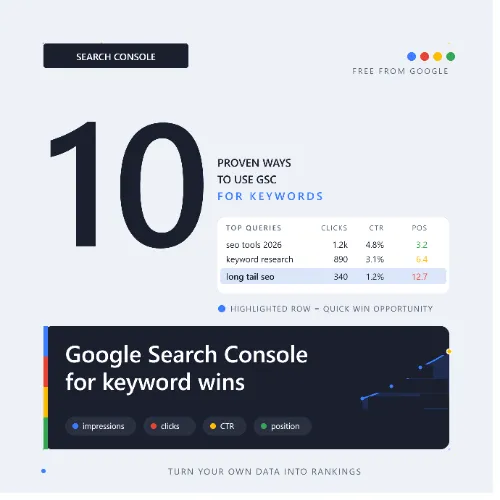
use Google Search Console for keywords Key Takeaways
Google Search Console provides first-party search data straight from Google, making it one of the most reliable tools for keyword research.
- You can use Google Search Console for keywords to see which queries already bring visitors to your site and how they rank over time.
- The Performance Report reveals impressions, clicks, CTR, and average position for each query, helping you prioritize content updates.
- Filtering by page, country, or device allows you to turn raw data into actionable keyword opportunities.
Why You Should use Google Search Console for keywords
Most keyword tools estimate search volume and competition based on third-party data. Google Search Console, on the other hand, shows you exactly what people searched before landing on your site. This makes it invaluable for understanding which Google Search Console keywords already perform well and where you can expand.
Whether you run a small blog or manage a large e-commerce site, the methods below will help you turn raw search data into a strategic roadmap.
1. Analyze Your Top Performing Queries
Start with the Performance Report in Google Search Console. Look at the queries that generate the most impressions and clicks. Sort by impressions to see broad reach or by clicks to focus on high-traffic terms.
What to look for
Identify queries where your average position is between 5 and 15. These are prime candidates for improvement. By optimizing existing content or creating more targeted pages, you can push those terms into the top 3 positions.
Actionable step
Export the query list and tag each Google Search Console keyword with the current page it ranks for. Then prioritize updates based on search volume and relevance.
2. Identify Keyword Opportunities with Low CTR
High impressions but low click-through rate (CTR) often means your title tag or meta description is not compelling enough. Use Search Console to find queries in positions 1–5 with CTR below 5%.
Rewrite your titles to include the exact query naturally and add emotional triggers or numbers. For example, change “How to Bake Bread” to “10 Easy Ways to Bake Bread at Home (Step-by-Step)”. This simple tweak can boost CTR without changing the page content.
3. Discover New Keyword Ideas via the Average Position Filter
Apply a filter in Search Console to show only queries with an average position between 10 and 20. These are terms where your site appears but does not get much traffic. They represent low-hanging fruit.
Create dedicated content targeting these queries. Since Google already associates your domain with the topic, ranking improvement often happens faster than with brand-new keywords.
4. Use the Pages Report to Find Keyword Clusters
Instead of analyzing queries in isolation, group them by landing page. Open the Pages tab in the Performance Report and select a URL. You will see all the Google Search Console keywords that send traffic to that page.
This helps you understand the semantic topic of each page. If your page ranks for “coffee brewing methods” and “best pour-over coffee,” you can expand the content to include more related terms and strengthen topical authority.
5. Compare Performance Across Countries
Global keyword tools often show combined search volume. Search Console lets you filter by country so you see how your keywords perform in each market.
For example, a query might have high impressions in the United States but low CTR in Canada. This insight allows you to tailor content or create location-specific pages.
6. Uncover Long-Tail Keywords from the Query List
Long-tail keywords often have lower competition and higher conversion intent. In Search Console, sort by impressions descending and scroll past the first few pages. The longer, more specific queries that appear lower in volume are often the most valuable.
Create blog posts, FAQs, or how-to guides that directly answer these queries. Because they are highly specific, they can drive qualified traffic and improve overall site relevance.
7. Track Keyword Trends Over Time
Set a custom date range in Search Console—compare the last 3 months to the previous 3 months. Look for queries whose impressions are trending upward. These are emerging topics you can capitalize on.
Similarly, declining queries may signal seasonal shifts or content fatigue. Use this data to decide whether to refresh a post, consolidate pages, or let the topic fade.
8. Filter by Search Appearance to Find Structured Data Opportunities
Search Console allows you to filter by search appearance such as AMP results, job listings, or review snippets. If your site has structured data, check which queries trigger enhanced features.
Optimizing for featured snippets or People Also Ask boxes can dramatically increase visibility. Identify queries that already show a snippet for your site and see if you can improve the answer format.
9. Combine Search Console Data with External Tools
Export your top Google Search Console keywords to a spreadsheet. Then cross-reference them with keyword research tools like Ahrefs or Semrush to get estimated search volume and keyword difficulty. For a related guide, see 11 Proven Ways to Optimize for AI Search Engines in 2026.
This hybrid approach gives you the best of both worlds: real Google data mixed with competitive intelligence. You can then prioritize keywords that have both proven demand and reasonable competition.
10. Use the URL Inspection Tool for Content Gap Analysis
The URL Inspection Tool shows you exactly how Google sees a specific page. Enter a URL that is underperforming relative to its topic. Look at the “Discovered – currently not indexed” status or the “Crawled – currently not indexed” message.
If the page is indexed, review the Google Search Console keywords it ranks for. If few relevant queries appear, the page may need more thorough coverage of the topic. Add sections that address subtopics and related questions.
SEO Entities and Their Functions
Understanding how Search Console data connects to other SEO entities helps you make better decisions.
- Website / Domain entities: Search Console shows performance at the property level (domain, subdomain, or URL prefix). Use this to compare sections like blog.example.com vs. shop.example.com.
- Keyword entities: Organic keywords with impressions, clicks, CTR, and position are the foundation of the Performance Report. Filter and export these to prioritize actions.
- Page entities: The Pages tab reveals which URLs earn traffic and which need optimization. Combine with internal linking data to strengthen authority.
- SERP entities: The Search Appearance filter shows which queries trigger featured snippets, sitelinks, or video results. Use this to refine content format.
- Technical SEO entities: The Index Coverage report and URL Inspection Tool expose crawl errors, indexability issues, and mobile usability problems that block keyword visibility.
Useful Resources
Explore these official guides to deepen your understanding:
Frequently Asked Questions About use Google Search Console for keywords
What is the best way to use Google Search Console for keywords ?
Start with the Performance Report to see your top queries, then filter by position and CTR to find optimization opportunities. Export data for deeper analysis.
Can I use Search Console for keyword research on a new site?
Yes, but you need some data first. Once Google indexes your pages, the Performance Report will show queries even if impressions are low. For a related guide, see 7 Essential GA4 SEO Reports You Should Track in 2026.
How often is Search Console data updated?
Data in the Performance Report is typically delayed by 1 to 2 days. The most recent 1–2 days may show incomplete numbers.
Does Search Console show search volume for keywords?
No, it shows impressions, clicks, CTR, and average position. You need external tools like Ahrefs or Semrush for search volume estimates.
What is the difference between impressions and clicks in Search Console?
Impressions count how many times a URL appeared in search results. Clicks count how many times users clicked through to your site.
How can I find keywords my competitors rank for in Search Console?
Search Console only shows data for your own site. Use competitor analysis tools like Ahrefs or Semrush to see rival keywords.
What does average position mean in Search Console?
It is the average ranking across all impressions for a query. A lower number means a better rank (1 is the top spot).
How do I export keywords from Search Console?
In the Performance Report, click the Export button and choose Google Sheets, CSV, or Excel format. The file includes queries, impressions, clicks, CTR, and position.
Can I filter Search Console data by device type?
Yes. Click the +New filter button, then select Device. You can view desktop, mobile, or tablet data separately.
What is a good CTR in Search Console?
It varies by industry and position. For position 1, a CTR above 20% is generally good. For lower positions, even 2% can be acceptable.
How do I use Search Console to find content gaps?
Look at queries where your site appears on page 2 or 3 (positions 11–20). Create or improve content around those topics to push into the top 10.
Does Search Console show branded vs. non-branded keywords?
It shows all queries that trigger your pages. You can manually separate branded queries (e.g., your company name) from non-branded ones during analysis.
Can I track keyword position changes over time in Search Console?
Yes. Use the date range comparison feature to see how average position changed between two periods. Export data for manual tracking.
What is the difference between Search Console and Google Analytics for keyword data?
Search Console shows impression, click, and position data directly from Google Search. Google Analytics shows on-site behavior after the click but lacks impression and rank data.
How do I find long-tail keywords in Search Console?
Sort the query list by impressions descending, then scroll past the high-volume terms. The longer, more specific phrases further down are typically long-tail keywords.
Does Search Console show keyword data for specific pages?
Yes. Open the Pages tab, click on a specific URL, then view the Queries tab to see which keywords drive traffic to that page.
Can I use Search Console for local SEO keyword research?
Yes. Filter by country in the Performance Report. You can also use the Google Business Profile integration to see local queries.
What should I do with keywords that have high impressions but no clicks?
Improve the title tag and meta description to make them more compelling. Also check if a featured snippet might be stealing the click.
Is Search Console keyword data free?
Yes, completely free. You only need a Google account and owner or full user permission for the property.
How much historical data does Search Console keep?
Search Console retains data for 16 months. You can export regularly to build your own historical database.