
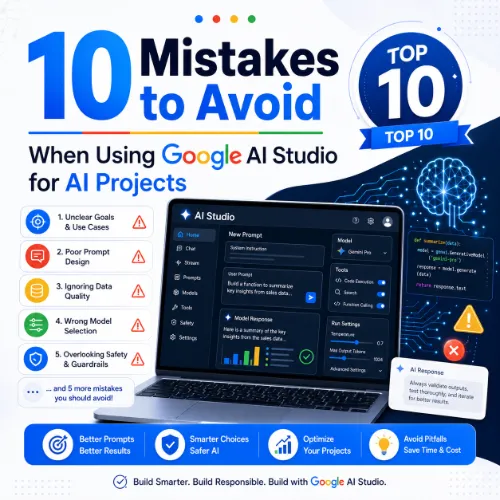
Google AI Studio mistakes Key Takeaways
Google AI Studio is a powerful platform for prototyping and testing AI models, but rushing in without a clear plan often leads to wasted time, inflated costs, and unreliable outputs.
- Neglecting prompt engineering basics is one of the most costly Google AI Studio mistakes — a poorly structured prompt can return inconsistent or irrelevant results.
- Ignoring token limits and cost tracking leads to unexpected billing spikes and truncated responses.
- Failing to test edge cases and monitor model changes can break your application after deployment.
Why Understanding Google AI Studio Mistakes Matters for Project Success
Google AI Studio gives developers and product teams direct access to powerful models like Gemini Pro. But with great power comes a steep learning curve. Many teams dive in, build a prototype in a day, and then hit roadblocks when scaling or integrating. By learning from others’ Google AI Studio mistakes, you can save days of debugging and thousands of dollars in compute costs. For a related guide, see Ai Saves Time In Seo: 5 Costly Mistakes to Avoid in 2026.
10 Critical Google AI Studio Mistakes to Avoid
1. Writing Vague or Overly Complex Prompts
Explanation: A prompt that doesn’t clearly define the task, output format, or constraints forces the model to guess. This is one of the most frequent Google AI Studio mistakes among new users.
Example: Instead of “Write something about AI,” try “Write a 100-word product description for a smart thermostat aimed at eco-conscious homeowners. Use a friendly tone and list three key benefits.”
Fix: Always include context, desired format, tone, and length. Use examples inside the prompt to guide the model.
2. Ignoring Token Limits and Context Windows
Explanation: Every model has a maximum context window (e.g., 32K tokens for Gemini Pro). Exceeding it silently truncates your input or output, destroying the quality of the response.
Example: Pasting a 50-page document into a single prompt without chunking it leads to lost information near the end.
Fix: Monitor token usage in the AI Studio interface. Break large inputs into smaller chunks and use summarization steps where possible.
3. Not Using System Instructions Effectively
Explanation: System instructions let you set the model’s behavior, role, and constraints upfront. Skipping this step is a common Google AI Studio mistake that results in inconsistent personality and tone across responses.
Example: For a customer support bot, set a system instruction like “You are a helpful, concise support agent for a SaaS company. Always ask clarifying questions if the issue is unclear.”
Fix: Define system instructions in the settings panel before starting any conversation. Update them as you refine your use case.
4. Overlooking Safety Settings and Content Filters
Explanation: Google AI Studio includes adjustable safety filters (harassment, hate speech, sexually explicit, dangerous content). Leaving them at default can block legitimate content or leave your app unprotected.
Example: A medical Q and A bot might get its responses flagged if the safety threshold is too strict for clinical terms.
Fix: Test your prompts under different safety configurations. Set the threshold that matches your domain while still meeting platform policies.
5. Failing to Test with Diverse Inputs
Explanation: A single “happy path” test gives a false sense of confidence. Real users will throw edge cases, typos, and unexpected phrasing at your model.
Example: A translation feature that works perfectly with clean English sentences may break when presented with slang or mixed languages.
Fix: Create a test set of at least 50–100 inputs covering variations, misspellings, and unusual formats. Automate this in AI Studio using batch runs.
6. Not Monitoring Cost and Usage
Explanation: Each API call consumes tokens, and costs add up fast. Many users are surprised by their first bill because they didn’t set usage limits or monitor spending.
Example: Running iterative prompt refinement on a 10,000-token input for hours can generate hundreds of dollars in unexpected costs.
Fix: Enable billing alerts in Google Cloud Console. Use the token counter in AI Studio to estimate cost per call. Set a daily or monthly budget cap.
7. Expecting Consistency Across Model Versions
Explanation: Google regularly updates models. A prompt that works perfectly with Gemini 1.0 Pro may behave differently on Gemini 1.5 Pro. This is a frequently overlooked Google AI Studio mistake in production.
Example: A formatting instruction that used markdown tables in one version may return plain lists after an update.
Fix: Pin your model version in code (e.g., models/gemini-1.5-pro-001). Test against the exact version you deploy to production.
8. Not Handling Errors and Rate Limits Gracefully
Explanation: Google AI Studio API has rate limits and returns error codes when exceeded. If your code doesn’t retry or handle these gracefully, users see failures.
Example: A high-traffic chatbot that doesn’t implement exponential backoff will stop working after hitting the limit.
Fix: Implement retry logic with backoff in your application. Check your quota on the Google Cloud Console dashboard and request increases if needed.
9. Using AI Studio for Production Workloads Without Refinement
Explanation: AI Studio is a prototyping environment, not a production platform. Many users make the mistake of exporting the exact prompt and key to a live app without optimizing latency, safety, or cost.
Example: A real-time customer service chatbot built directly from an AI Studio prototype may have 5-second response times because no optimization was done.
Fix: Refactor your prompt for production: reduce token count, cache common responses, use a smaller model where possible, and integrate monitoring.
10. Not Version-Controlling Prompts and Configurations
Explanation: Prompts evolve quickly during development. Without version control, you lose the ability to roll back when a change degrades performance.
Example: A team that tweaked a prompt for a legal document summarizer finds that the latest version omits key clauses — but nobody saved the earlier working version.
Fix: Use a version control system (even a spreadsheet) to track prompt drafts, system instructions, safety settings, and model versions. Tag each change with the date and test results.
Your Google AI Studio Mistakes Prevention Checklist
- Write clear, structured prompts with examples.
- Monitor token usage and set budget alerts.
- Define system instructions before your first conversation.
- Test with diverse, real-world inputs, not just clean ones.
- Pin your model version and test against it.
- Implement retry logic for API errors.
- Refactor prompts for production latency and cost.
- Version-control every prompt and configuration change.
Useful Resources
To deepen your understanding of Google AI Studio mistakes and best practices, check out these official and community resources: For a related guide, see 7 Technical SEO Fixes for eCommerce: Avoid These Costly Mistakes.
- Google AI: Prompt Engineering Guide — Official documentation covering prompt structure, system instructions, and safety settings.
- Vertex AI: Gemini Models Overview — Learn about model versions, context windows, and quotas for production deployments.
Frequently Asked Questions About Google AI Studio mistakes
What is the most common Google AI Studio mistake?
The most common mistake is writing vague prompts without specifying output format, tone, or context. This leads to unpredictable and often useless results.
How can I avoid errors in Google AI Studio ?
Start with clear system instructions, test with diverse inputs, monitor token usage, and always pin your model version to avoid unexpected changes.
Does Google AI Studio cost money?
The AI Studio interface itself is free for prototyping, but API calls to production deployments incur costs based on token usage. Always set budget alerts.
What happens if I exceed the token limit?
Exceeding the token limit silently truncates either your input or the model’s output. The response may be incomplete or lose important context.
How do I set system instructions in Google AI Studio?
In the AI Studio interface, open the settings panel before starting a conversation. There you can add system instructions that define the model’s role and behavior.
Can I use AI Studio for production apps?
AI Studio is designed for prototyping. For production, export your prompt and use the Vertex AI API with proper monitoring, caching, and scaling.
Why did my prompt stop working after a week?
Google updates its models periodically. Your prompt may behave differently on a newer model version. Pin your model version to keep behavior consistent.
What is a good prompt template for Google AI Studio?
A good template includes: role instruction, clear task, output format, length, tone, and at least one example. Keep it concise but specific.
How do I test my AI Studio project with edge cases?
Create a test dataset of 50–100 inputs that includes typos, slang, empty strings, very long texts, and contradictory instructions. Run batch tests using the API.
What are safety filters in Google AI Studio?
Safety filters block content related to harassment, hate speech, sexually explicit material, and dangerous activities. You can adjust their thresholds per project.
How do I handle API rate limits?
Implement exponential backoff in your code. Check your quota in Google Cloud Console and request an increase if your application needs higher throughput.
Can I save multiple prompt versions in AI Studio?
AI Studio saves your prompt history, but for serious development, export prompts to a file and use version control to track changes.
What is the difference between AI Studio and Vertex AI?
AI Studio is a free, browser-based tool for rapid prototyping. Vertex AI is a production platform with advanced monitoring, deployment, and scaling features.
How can I reduce costs in Google AI Studio projects?
Use smaller models when possible, reduce prompt token count, cache frequent responses, and set daily budget caps in Google Cloud Console.
What is the context window in Gemini models?
The context window is the maximum number of tokens the model can process in one request. Gemini 1.5 Pro supports up to 1 million tokens in some configurations.
Does AI Studio support multimodal prompts?
Yes, Google AI Studio supports text, image, and video input with Gemini 1.5 Pro. You can upload files directly in the interface.
How do I export my AI Studio prompt to code?
AI Studio provides a “Get Code” button that generates Python, Node.js, or REST API code for your prompt and settings. Use that as a starting point.
What should I do if the model gives incorrect answers?
Refine your prompt with more context and constraints. Add few-shot examples showing the correct output. Test with simpler inputs first.
Can I share my AI Studio project with my team?
Yes, you can share a link to your AI Studio project. Team members can view and modify prompts, though concurrent editing is limited.
What is the best way to learn prompt engineering for Google AI Studio?
Start with the official Google Prompt Engineering Guide, experiment in AI Studio with your own data, and analyze both success and failure patterns.